Who can use this feature?

Admin users / Super users and Users with Read/Write permissions for Scheduled Syndication module.

Available on Accounts with subscription to and Scheduled Syndication module.
Schedule Syndication involves automatically syndicating products to channels based on their configuration, eliminating the need for users to manually syndicate them.
How to configure Schedule Syndication?
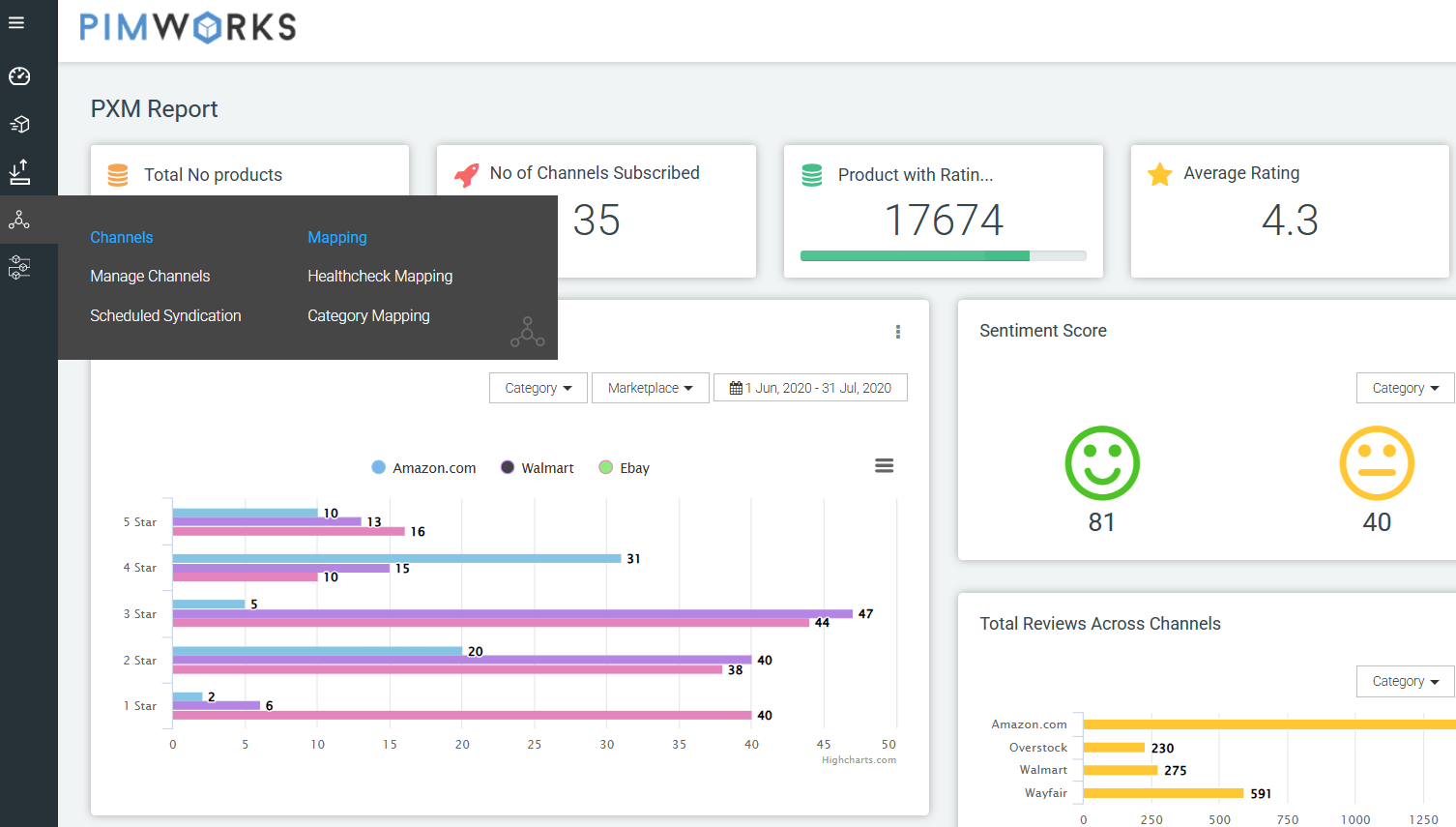
- Go to Channels > Scheduled Syndication under Channels.
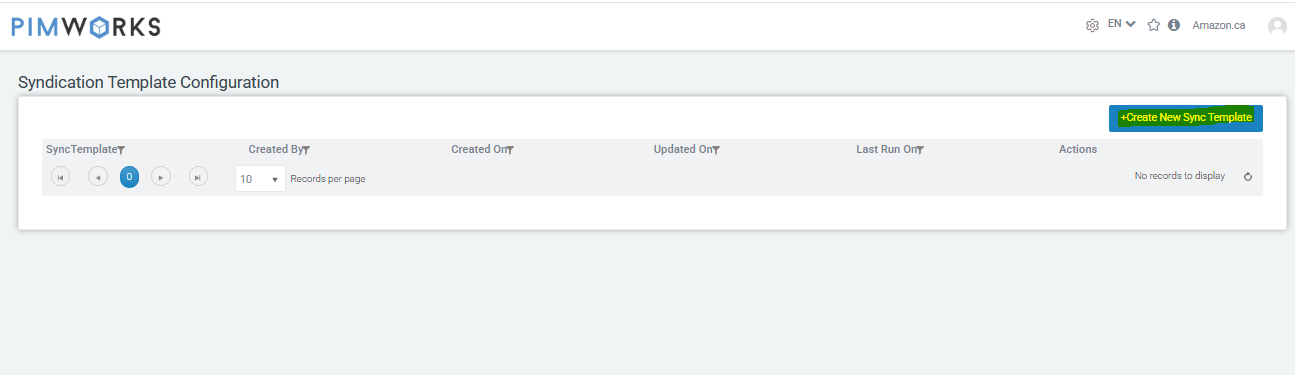
- Create new template using '+Create New Sync template' button.
- In Template configuration step, provide a template name.
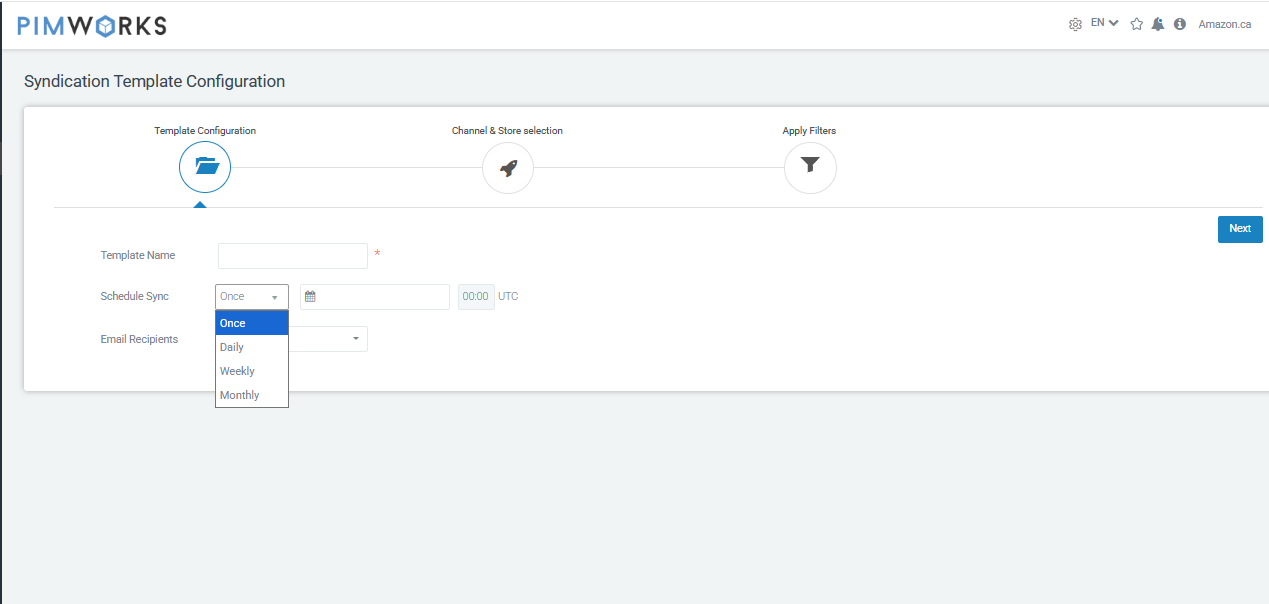
- Choose available options for the Scheduled Sync and select the Email recipients from the dropdown and click on the 'Next' button.
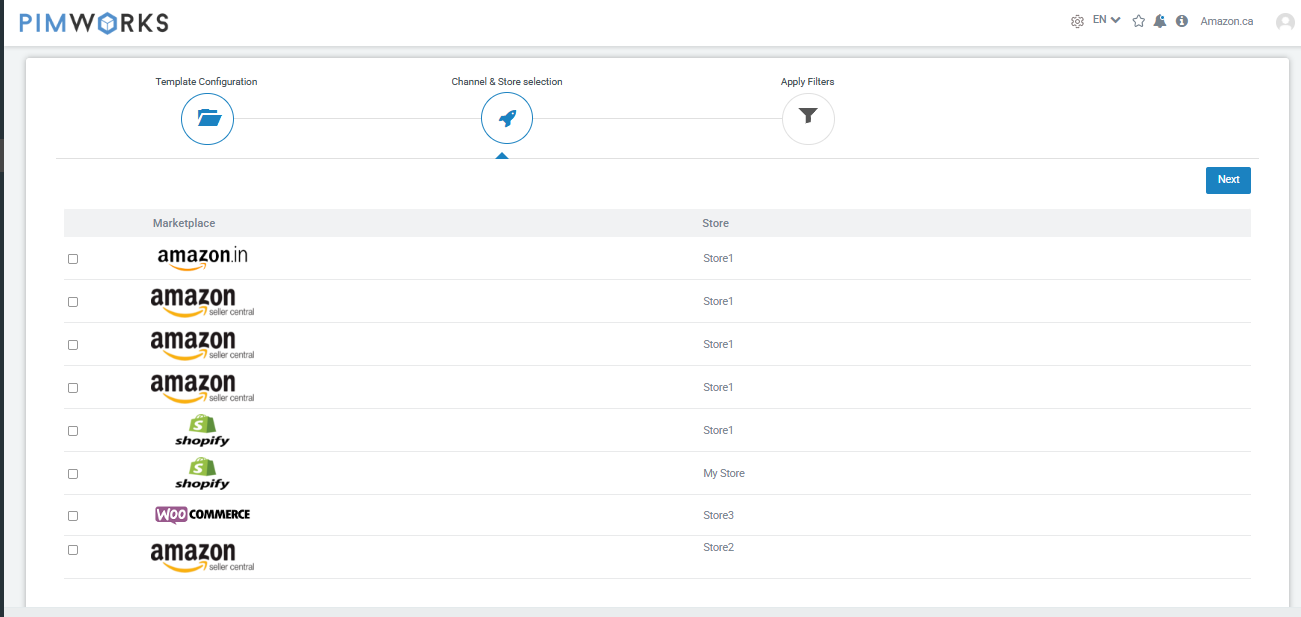
User have the option to schedule this configuration by specifying whether it should run on a daily, weekly, or monthly basis, along with the desired time for syndication.User have an option to select up to 3 users. Selected users will be notified post product syndication. - In Channel and store selection step, select the channels you wish to syndicate products and click on the 'Next' button.
- In 'Apply Filter' step, select taxonomy nodes, status, sync status, date range (created/updated), and specific attribute values.
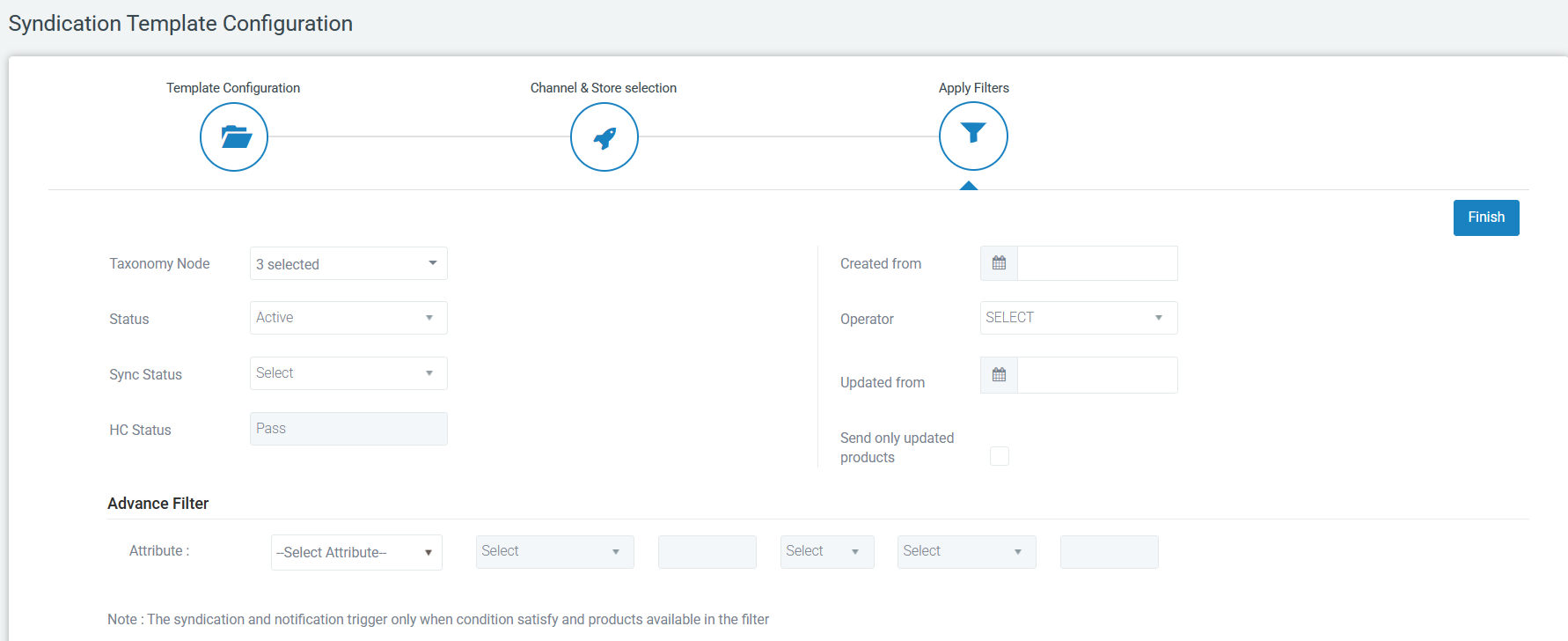
User have an option to select 'Send Only Updated Products' in order to syndicate new products and the products that have been updated after the last syndication to channel - Click 'Finish' to complete the process.
To view the Batch statuses
- Navigate to the Product > Healthcheck batches under Product Batches.
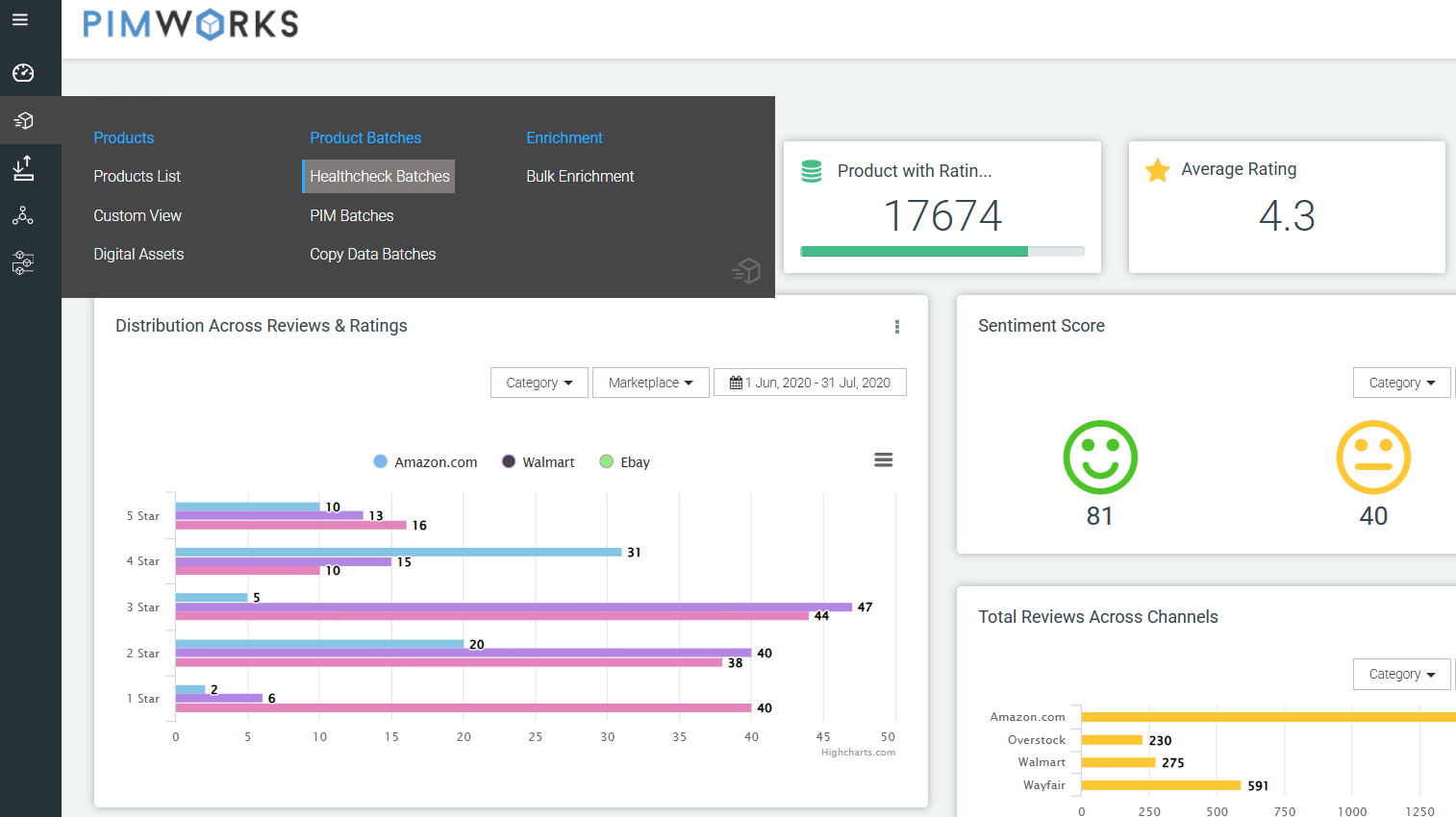
- Users can monitor the API status and download the API report by clicking on the download icon located under the Action section corresponding to the input batch name.
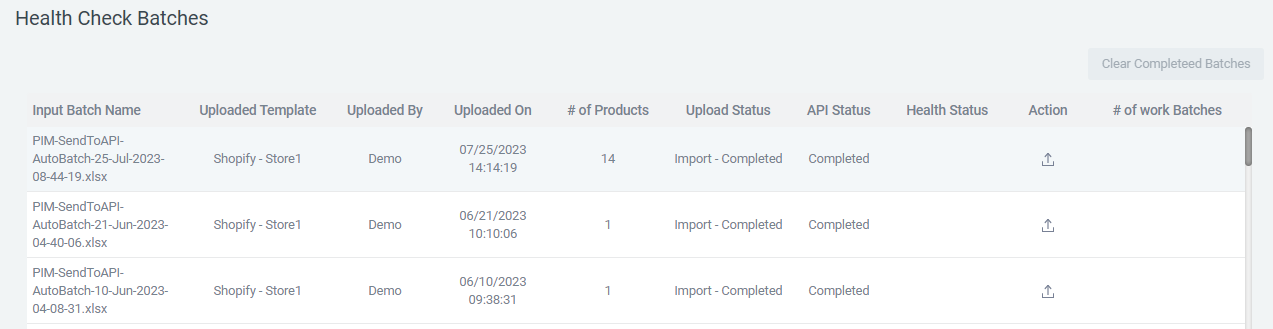
Product Syndication is limited to 2,000 products per scheduled sync.Was this article helpful?
That’s Great!
Thank you for your feedback
Sorry! We couldn't be helpful
Thank you for your feedback
Feedback sent
We appreciate your effort and will try to fix the article